

← All help topics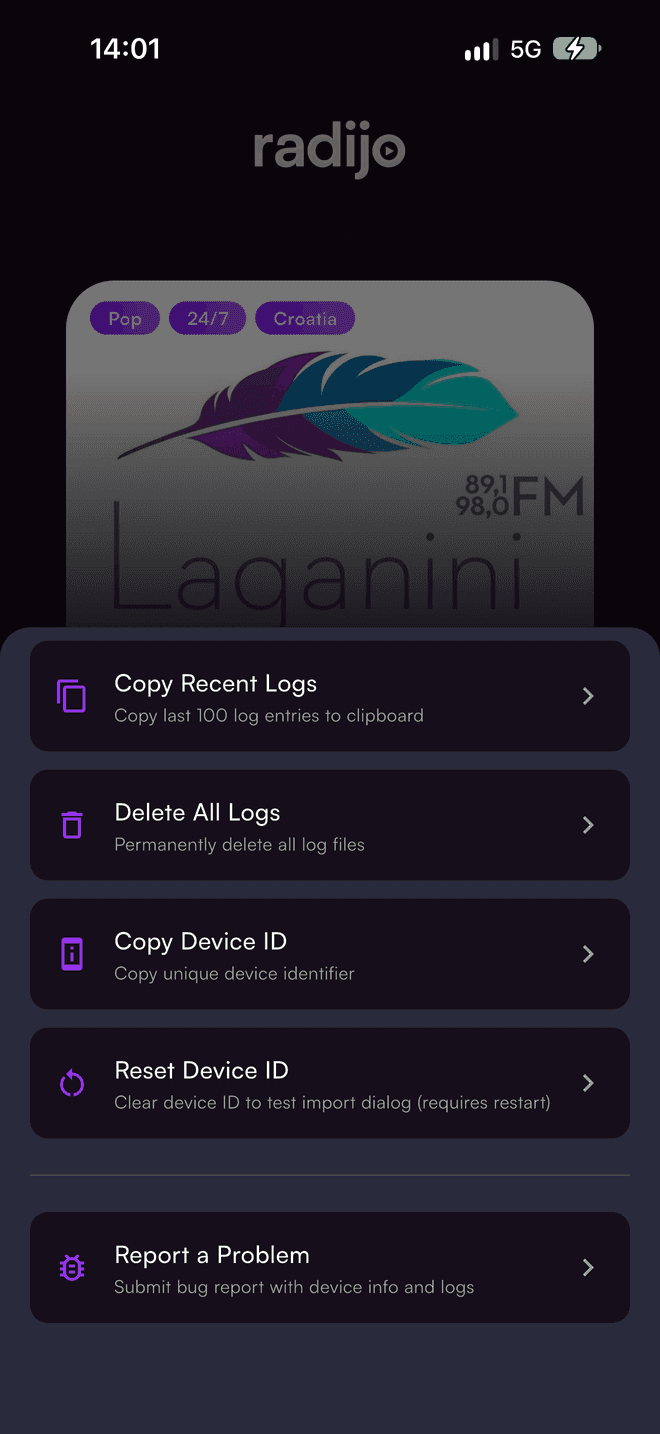
Help
Report a bug
The fastest way to get a problem fixed is to report it from inside Radijo. The report carries your app version, device model and, if you allow it, the app's own log files — the things we would otherwise have to ask you for.
How do I send a report?
- Go to the Home tab and tap the radijo logo at the top five times quickly. The Debug Menu opens.
- Scroll to the bottom and choose Report a Problem.
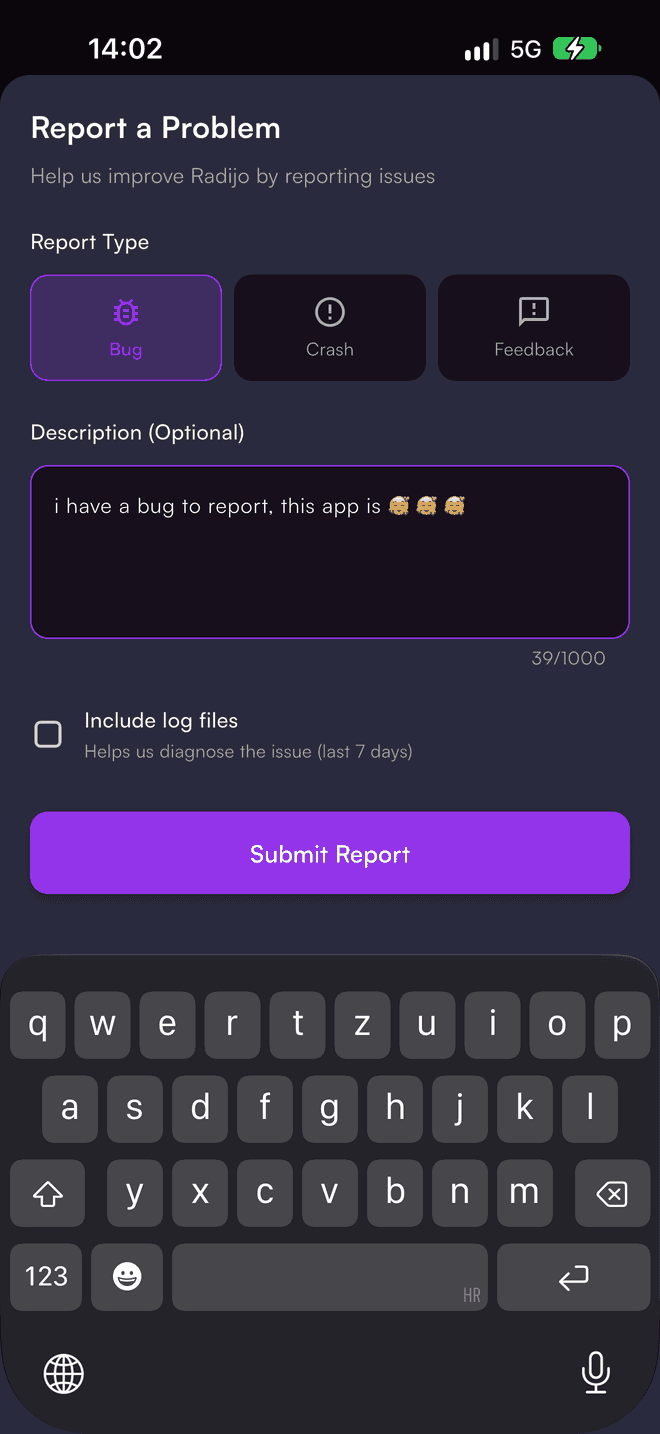
- Pick the report type: Bug (something behaves wrongly), Crash (the app closed by itself) or Feedback (a suggestion).
- Describe what happened. Say what you did, what you expected and what you saw instead; up to 1000 characters. The description is optional, but a report without it is much harder to act on.
- Tick Include log files when the problem is about playback, connection, the car, or anything that happened without you touching the screen. It attaches the app's logs from the last 7 days; they contain station names, times and technical messages, never your personal data.
- Tap Submit Report.
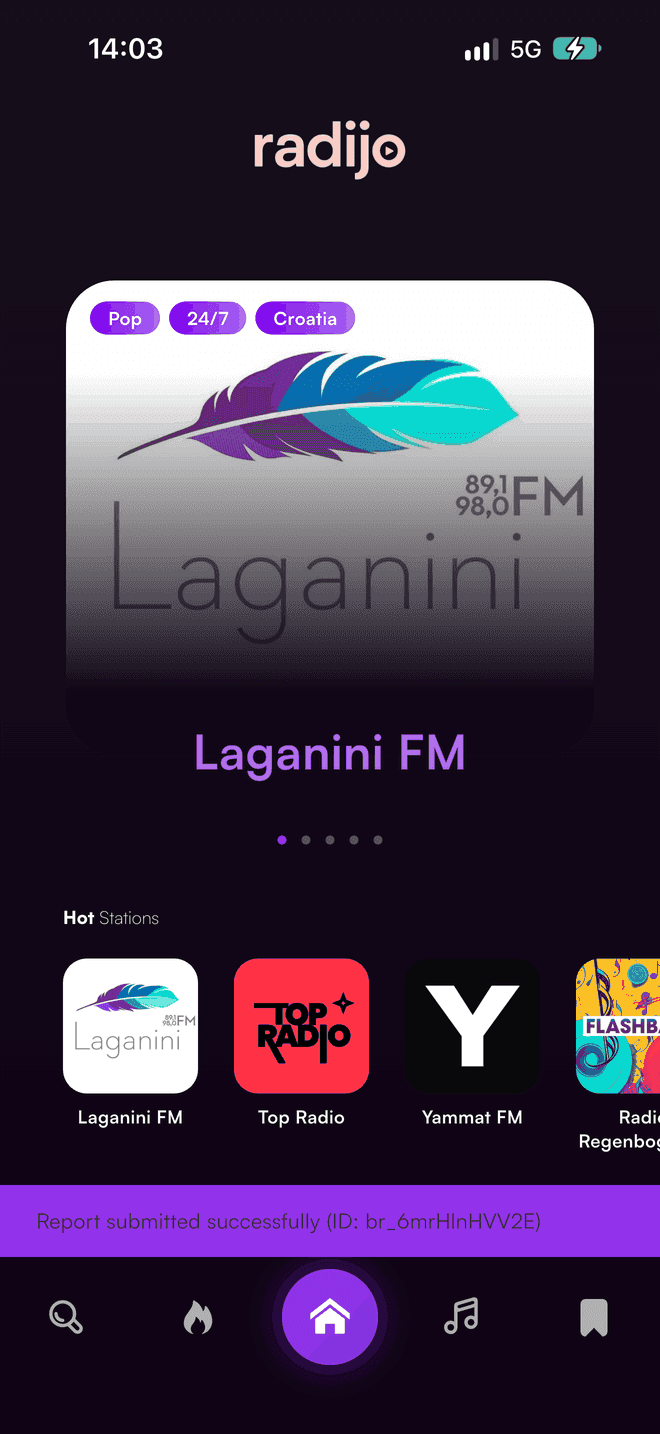
A confirmation appears at the bottom of the screen with the report's ID, such as br_6mrHlnHVV2E.
What makes a report useful?
- Do it right after it happened. The logs we get are most useful when the problem is still in them.
- One problem per report. Two problems in one report tend to get one fixed.
- Name the station if it matters — "Heart 90s stops after a minute" beats "a station stops".
- Say where you were: in the app, on the lock screen, in the car (Android Auto or CarPlay), with headphones.
- If the app crashed, open it again and send the report straight away with Crash and logs ticked — the previous run's log is still there.
Good to know
- You can send several reports, but not back to back; if you see Please wait before submitting another report, give it a minute.
- Reporting needs an internet connection. Without one the report cannot be sent; try again once you are online.
- If you need to contact us outside the app, quote the report ID from the confirmation.
Last updated