

Move your favourites to a new phone
Radijo has no accounts. Your favourites, liked songs and listening history belong to a device ID that the
app creates on first launch — a code that starts with ios- or android-. Moving that code to another phone
(or another installation) moves your profile with it.
1. How do I copy my device ID?
There are two ways. Both put the ID on the clipboard.
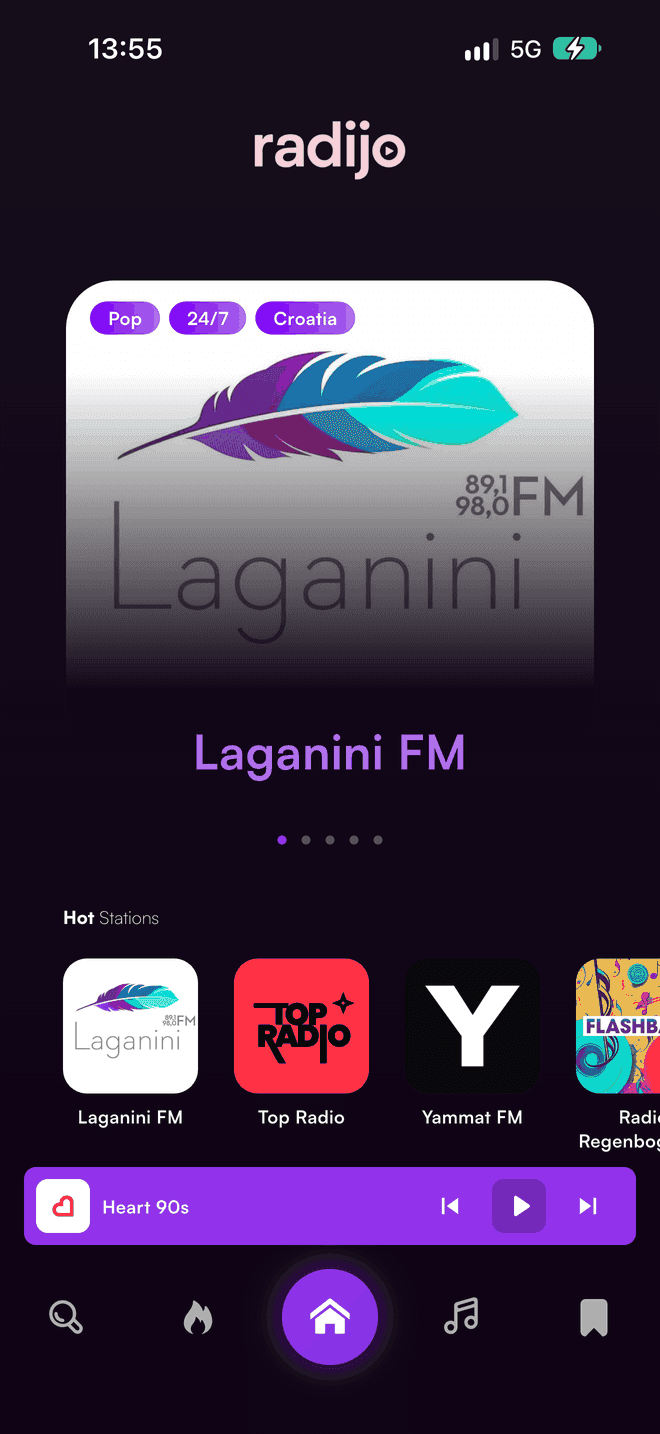
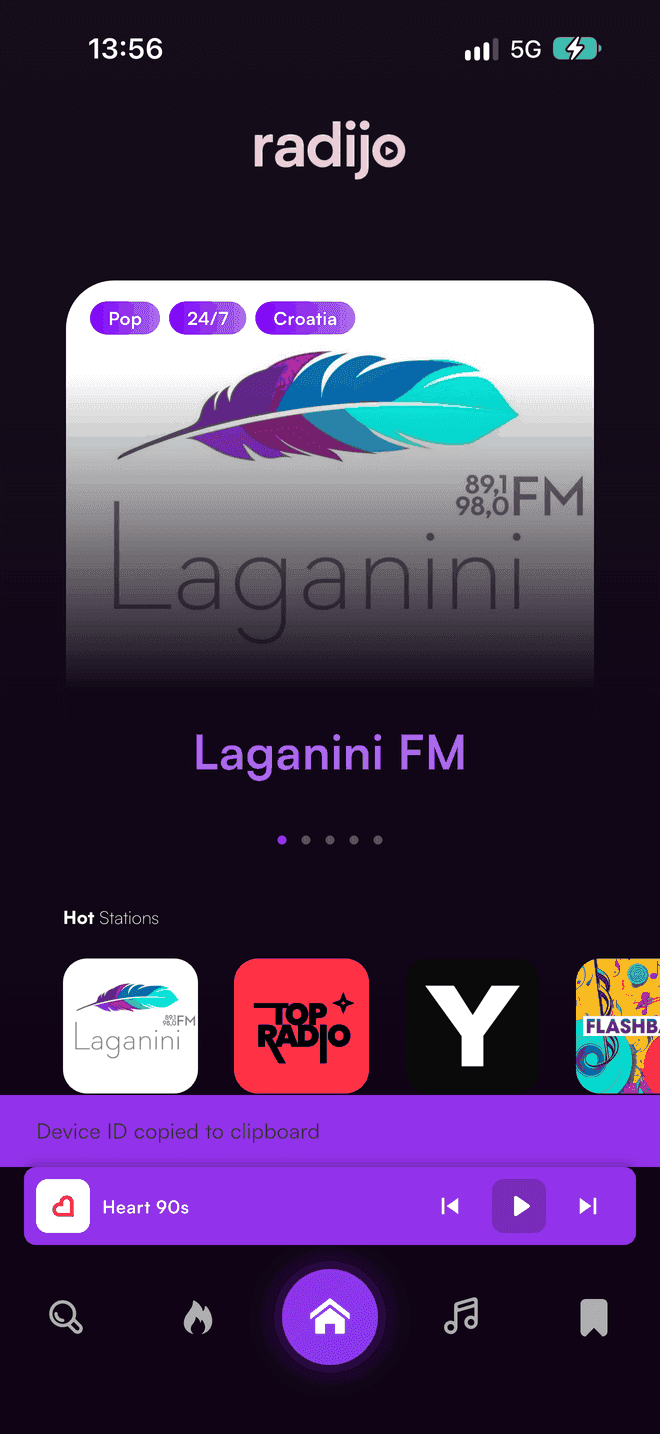
The quick way: long-press the logo. On the Home tab, press and hold the radijo logo at the top of the screen. The message Device ID copied to clipboard appears at the bottom.
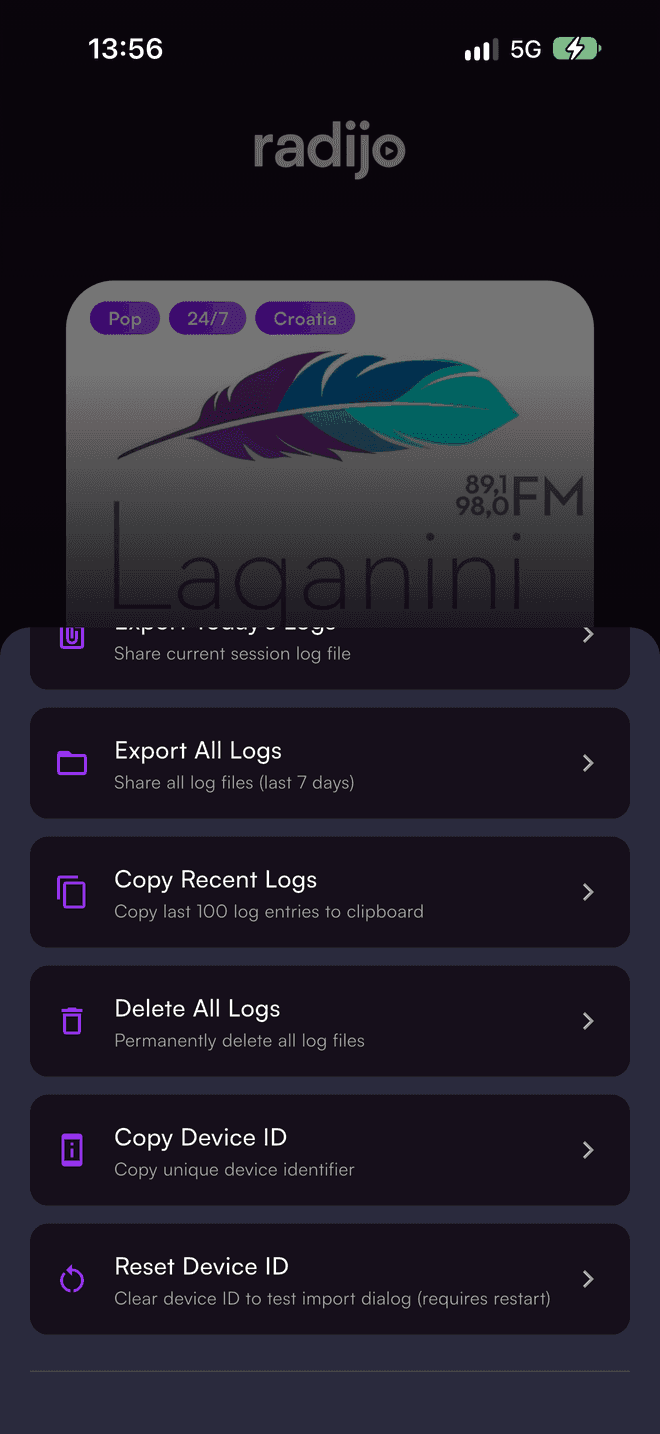
Through the Debug Menu. Tap the radijo logo five times quickly. The Debug Menu opens; choose Copy Device ID.
Now paste it somewhere you can reach from the other phone — a note that syncs, a message to yourself, an e-mail. Treat it like a password: anyone who has it can pick up your favourites.
2. How do I import it on the new phone?
Install Radijo on the new phone and open it. On the first launch the app asks whether you have used Radijo before.
The welcome screen asks if you've used Radijo before on this device.
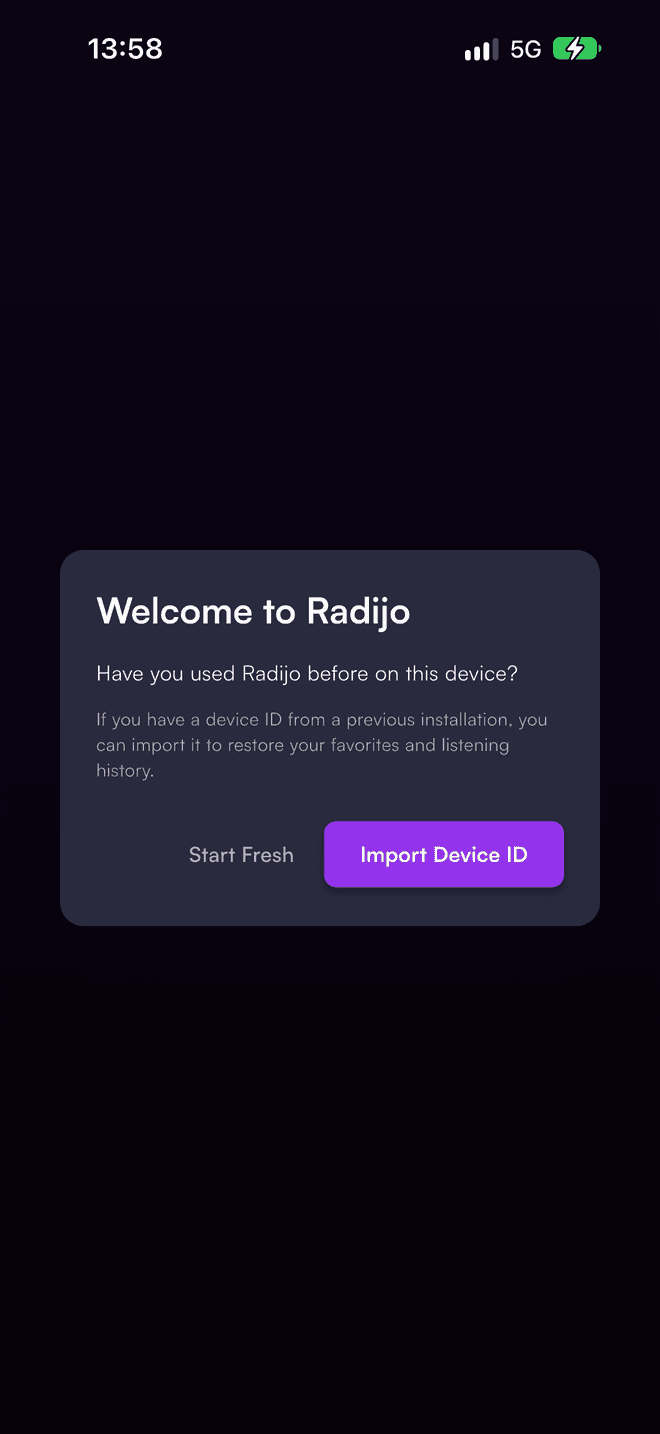
- Tap Import Device ID.
- Paste the code you copied and tap Import.
- The app may then ask for notification permission; that is the normal system prompt.
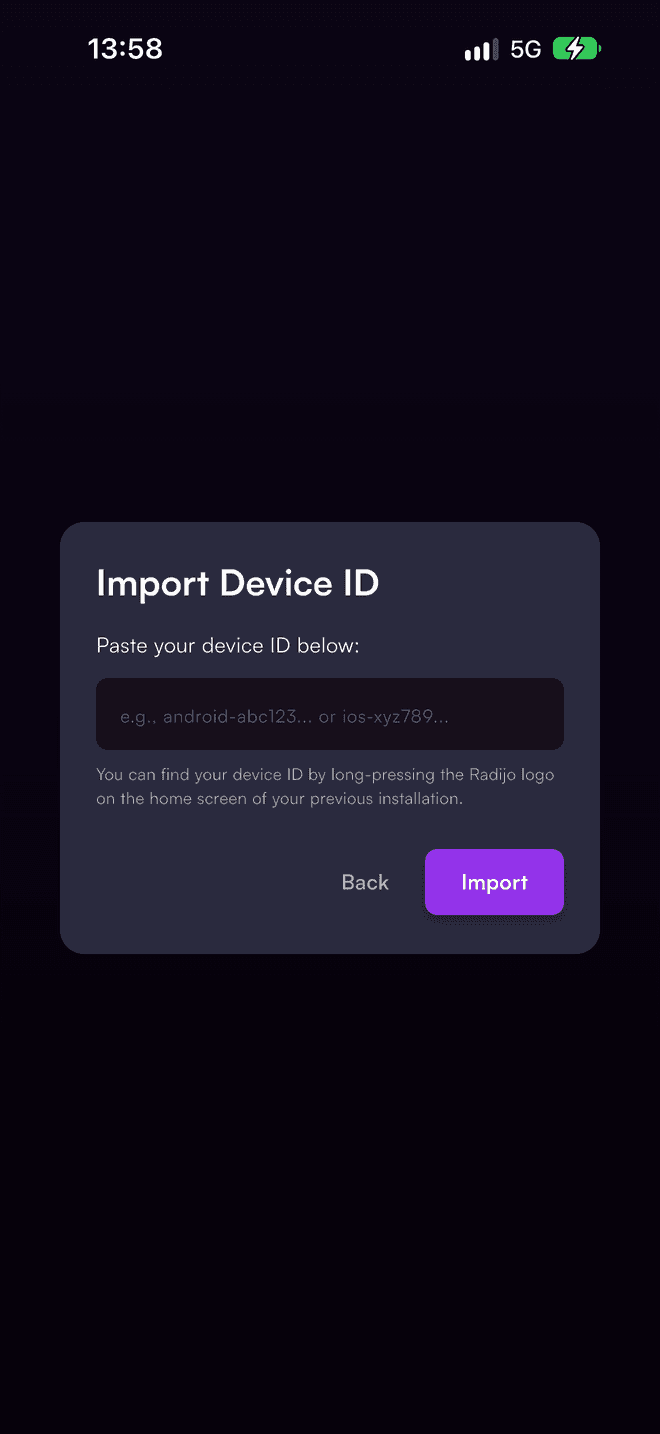
Your favourites, liked songs and listening history are back. From now on this phone uses the same ID, so the old installation and the new one share one profile — keep using only one of them.
What if I tapped "Start Fresh" by mistake?
The question is asked only once. To see it again: tap the radijo logo five times, choose Reset Device ID, close the app completely and open it again. Then follow step 2.
Reset Device ID discards the current profile on that phone. Use it only when you are about to import another ID.
Troubleshooting
| What you see | What it means |
|---|---|
| Invalid device ID format | The code must start with ios- or android-. Copy it again from the old phone; a partial paste is the usual cause. |
| Favourites did not appear after import | Give the app a moment on a working connection; the list loads from the server. If they still do not appear, check the ID in the Debug Menu → Copy Device ID and compare it with the one you copied. |
| No welcome question on first launch | The app has already been opened on this phone. Use Reset Device ID above. |
Moving from the test app
This is also how testers move their profile from the test app to the production app once Radijo is installed from the App Store or Google Play. Copy your device ID from the test app before you remove it, then import it into the store version on first launch. Your favourite stations, liked songs and listening history come with it.
Last updated